

A WooCommerce reorder button lets a customer repeat an earlier purchase in one click instead of rebuilding the cart. For stores that sell coffee, supplements, pet food or supplies, that single button can turn a one-time buyer into a regular one.
Want customers to buy again without rebuilding their cart? This guide shows small business owners, developers, and SaaS-minded operators how to add a WooCommerce reorder button, from the built-in Order Again feature to a shortcode snippet, with five methods compared side by side.
You will also learn how to fix a button that does not show on block themes, handle stock and price changes on a repeat order, reach guest customers, set up B2B quick reorder, and measure the results.
What Is a WooCommerce Reorder Button? How Order Again Works by Default
A reorder button, called Order Again in WooCommerce, copies the items from a past order back into the cart. The customer can then check out again without searching for each product.
By default, WooCommerce shows this repeat order button only for completed orders. It appears on the order confirmation page and on the View Order page inside My Account. It does not appear in the main list of My Account orders unless you add it. It also does not appear for orders that are processing, on hold, or cancelled.
That default is why many stores look for a better WooCommerce reorder button. A customer who ordered last week and is still waiting for delivery cannot reorder yet. A customer scanning the order list has to open each order first.
Plugins and code can fix both problems. The next sections show how.
WooCommerce Reorder Button Options Compared
| Method | Cost | Setup | Best for |
|---|---|---|---|
| Default Order Again button | Free | None | Stores happy with completed-order reorders |
| Code Snippet | Free |
Developer, about 20 minutes |
Developers who want full control |
| One click re-order |
Listed from $29 a year |
Install, then tick settings |
Owners who want any order status and a button in the list, no code |
|
Product Table with previous-purchases filter |
Free | Install and activate |
Testing the idea on a classic theme |
|
Product Table with previous-purchases filter |
A third-party review lists $129 for one site |
Table builder plus shortcode, plus extra plugins to place it |
Reorder page and B2B quick reorder |
Prices change, so check each product page before you buy. WooCommerce’s own docs and product page for One Click Re-Order also disagree on where the button sends the customer, cart or checkout, so test the flow yourself.
Quick guidance: pick the default if completed-order reorders are enough, a snippet if you code, One Click Re-Order if you want a no-code WooCommerce reorder button for any status, and Product Table if you need a full reorder page.
Add an Order Again Button to My Account Orders (Code Method)
Developers can add the button to the My Account orders list in two steps. First, allow Order Again for more statuses. Second, add the button to the list. WooCommerce checks the allowed statuses before it re-adds items, so you need both.
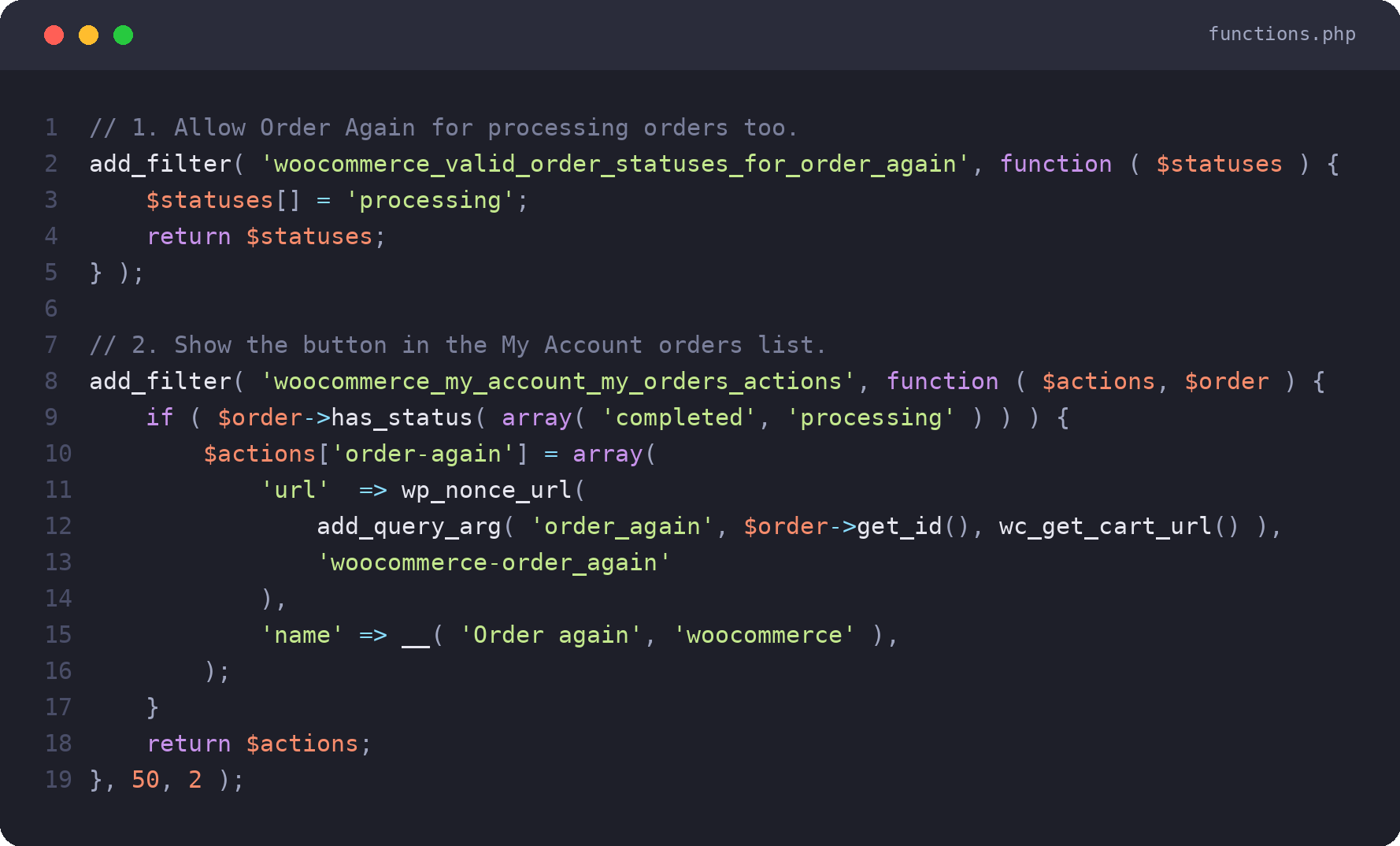
Add the code to a child theme or a code snippets plugin, never directly into a parent theme. Test on staging with one processing order and one completed order. To limit the button to completed orders, skip the first filter.
Treat this WooCommerce reorder button snippet as a starting point. It targets the classic My Account template, and block-based layouts may need a different approach, covered next.
Why Your WooCommerce Reorder Button Is Not Showing (Block Themes and Other Fixes)
If the button is missing, check these causes in order.
- Order status. The default Order Again button needs a completed order. Extend the statuses with the code above or use a plugin.
- Block theme or block-based My Account. Some reorder plugins support only the classic My Account template. MKT Quick Reorder, for example, says block-based themes such as Twenty Twenty-Four and Twenty Twenty-Five are not supported yet, with full support planned for a later version. If your Appearance menu shows an Editor item, you are likely on a block theme.
- Plugin or theme conflict. Switch to a default theme, disable other My Account plugins, and test again.
- Customer not logged in. The button lives in My Account, so logged-out visitors never see it.
- Outdated plugin. Check the “tested up to” version and the last update date.
The fastest test is a staging copy with a default classic theme. If the button appears there, the problem is your theme or template, not the WooCommerce reorder button plugin itself. Ask the developer about block support before you buy or install.
Repeat Order Edge Cases: Stock, Prices, Variations and Subscriptions
A repeat order is not always as simple as copying an old cart. Plan for these cases before you launch.
- Out-of-stock items. Decide whether the button adds available items and warns about the rest, or blocks the whole reorder. Some plugins re-add each item through WooCommerce’s normal add-to-cart checks, so current stock applies. Confirm this on your chosen plugin.
- Price changes. Customers expect today’s price, not the old one. Test an order placed before a price change and check the cart total.
- Variable products and add-ons. Check that sizes, colors, and custom product options carry over correctly.
- Coupons and subscriptions. A reorder should not silently reuse a one-time coupon. For subscription products, test renewals and reorders separately.
- Cart or checkout. Sending customers to the cart lets them review changes. Sending them straight to checkout saves a click. If your prices or stock change often, the cart is the safer default for any WooCommerce reorder button.
Guest Customers and the Login Problem
Every method above lives in My Account, so it only helps logged-in customers. Guest checkout buyers get nothing.
Three ways to close the gap:
- Offer account creation after checkout, so the customer can reorder next time.
- Link to the account page from the order confirmation email.
- Test a plugin or custom code that adds a reorder link to order emails, and check how it handles guest orders.
Without one of these, the WooCommerce reorder button reaches only part of your customers.
B2B Quick Reorder and Which Stores Benefit Most
B2B quick reorder works best when customers buy the same items on a schedule: office supplies, cafe stock, salon products, spare parts. These buyers often want a list of past products with quantity boxes, not a single button. That is where a table-based method, like the Product Table option above, can beat a basic WooCommerce reorder button.
Consumer categories differ too. A 2026 benchmark roundup from Rivo puts repeat customer rates near 30% for pet supplies, about 29% for health and supplements, 25.9% for beauty, and 14.7% for home and furniture. A separate August 2026 analysis finds the average repeat purchase rate across more than 100 retailers is closer to 16.5%, roughly ten points below figures often quoted. Treat any benchmark as a rough guide and rely on your own data.
The takeaway: stores with consumable or restock products gain the most from a repeat order feature. Stores selling one-off items, such as furniture, gain the least.
How to Measure Repeat Order Results (A SaaS-Style View)
If you know SaaS metrics, treat reorders like retention. Measure the impact of your WooCommerce reorder button before you switch anything on, then compare 30 days later.
Track these:
- Repeat purchase rate: customers with two or more orders divided by all customers.
- Reorder click-through: orders started with the button divided by visits to My Account orders.
- Average order value: do reorders differ from first orders?
- Days to second order: a shorter gap means the button is working.
- Customer lifetime value: average order value × purchase frequency × gross margin %, divided by churn rate.
For context, Rivo reports that repeat customers generate about 44% of revenue while making up roughly 21% of customers. The August 2026 analysis puts the extra spend of repeat buyers at about 69%. Sources vary, so your own baseline matters more than any benchmark.
Run a simple test: show the button to half your customers and compare reorder rates after a month. Use analytics events to count clicks on your WooCommerce reorder button.
How to Vet a Reorder Plugin Before You Install It
Not every plugin deserves a place in your checkout flow. Before installing a WooCommerce reorder button plugin, check:
- Installs and reviews. A brand-new plugin with fewer than 10 installs and no reviews is riskier, not necessarily bad.
- Update history. WordPress.org warns when a plugin has not been tested with the latest three major WordPress releases. One free reorder plugin listing, OneClick Reorder, carries that warning.
- Block support. The plugin should state clearly whether it works with block themes.
- Stock and price checks. Does it check availability and apply current prices?
- Support and refunds. One Click Re-Order lists a 30-day money-back guarantee.
Always back up your site and test on staging before going live.
Conclusion
A WooCommerce reorder button is a small change with a clear job: make the next purchase easier. Start with the default Order Again button, then extend it with code or a plugin that fits your theme, your order statuses, and your customers.
Fix block theme support, handle stock and price changes, cover guests, and measure repeat orders for 30 days. Then decide whether a bigger investment, such as a B2B quick reorder table, is worth it. Choose the WooCommerce reorder button setup you can test, measure and maintain.
FAQ
Is there a built-in WooCommerce reorder button?
Yes. WooCommerce includes an Order Again button, but only for completed orders, and it is not in the My Account orders list unless you add it.
Why is my WooCommerce reorder button not showing?
Most often, the order is not completed, you use a block theme the plugin does not support, or the customer is logged out. See the fixes above.
How do I enable Order Again for processing orders?
Use the woocommerce_valid_order_statuses_for_order_again filter shown above, or a plugin that supports any order status.
Is there a free WooCommerce reorder plugin?
Yes, such as MKT Quick Reorder. Check block support, install count and update history first.
Can guests use a repeat order feature?
Not through My Account. Encourage account creation or test order-email reorder links.
What is B2B quick reorder?
A fast way for business buyers to repeat past purchases, often through a table of previously bought products with quantity fields.
